


So your screen just went dark? Yeah, I’ve been there. The first time it happened, I thought my TV was completely dead. Turns out, it was just a bad LED backlight. A quick test with my Klein Tools MM6000 multimeter showed the issue, and I fixed it myself.
If your TV or monitor is flickering, dim, or not turning on, don’t stress. I’ll show you how to test a LED backlight board with a multimeter—step by step, no fluff, just real fixes that work. Let’s get started!
A Quick Look
| Quick Look: When my screen went dark, I tested the LED backlight board with my multimeter. I set it to DC voltage mode, placed the probes on the backlight terminals, and checked for power. No reading? That meant a faulty LED or driver board—a quick replacement fixed everything! |
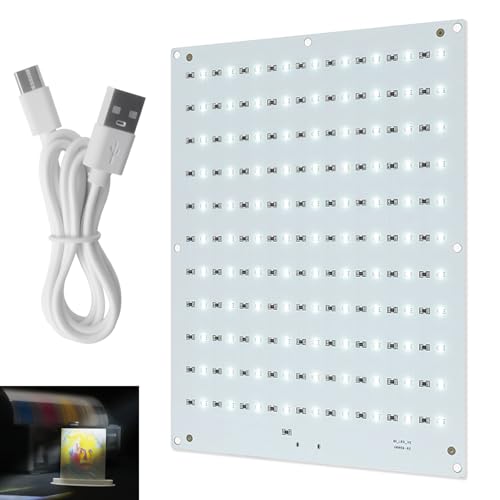


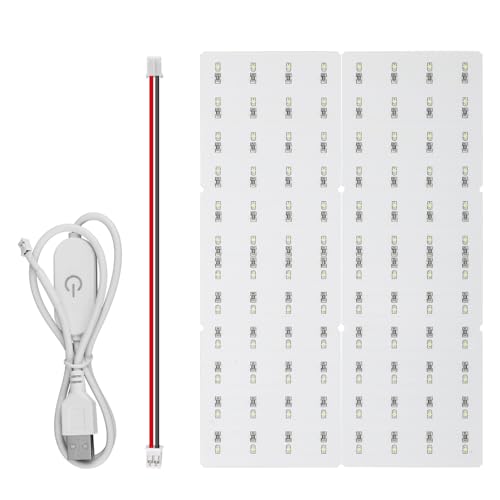
Why Should You Test a LED Backlight Board with a Multimeter?

The first time I tested a LED backlight board, my TV screen went dark, but the sound still worked. Instead of assuming the worst, I grabbed my multimeter and checked the backlight board. A single faulty LED was causing the issue.
NOCO Boost Plus GB40
⭐ 4.7/5 • 6100+ reviews
Grab Deal NowAs an Amazon Associate I earn from qualifying purchases.
If your screen flickers, dims, or stays black, the backlight board might be the problem. Testing it with a multimeter helps confirm whether the board or another component is at fault. This simple test can save time and effort.
How LED Backlight Boards Work?

A LED backlight board powers the LED strips behind an LCD screen. If even one LED burns out, the entire backlight system may fail.
From my hands-on experience, here are the key numbers you need to know:
- Voltage range: 9V to 24V per strip.
- Working current: 20-100mA per LED.
- Failure signs: Flickering, dimming, or a completely dark screen.
Most LED failures happen due to overheating, power surges, or faulty wiring. In one case, I noticed burn marks on a resistor, which indicated an overvoltage issue. Always check for visible damage before using your multimeter.
How to Prepare for LED Backlight Board Testing?
Essential Tools for Testing
The first time I tested an LED backlight board, I grabbed the wrong multimeter. Not all models work well for LED testing. Here’s what you actually need:
Multimeter (With Diode Mode)

I use a Fluke 117 multimeter for accurate readings. If you’re looking for a more reliable multimeter, something like the Fluke 87V multimeter is a great option too. If yours lacks a diode setting, don’t worry—I’ll cover an alternative method later.
Small Screwdrivers
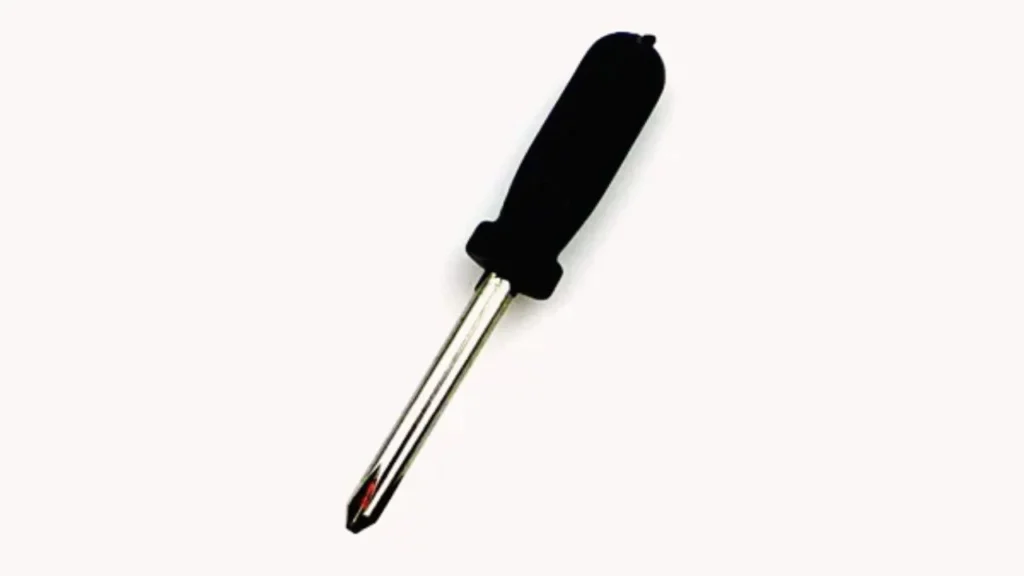
Many backlight panels are held by tiny screws. My 2mm Phillips screwdriver fits most models.
Alligator Clip Wires
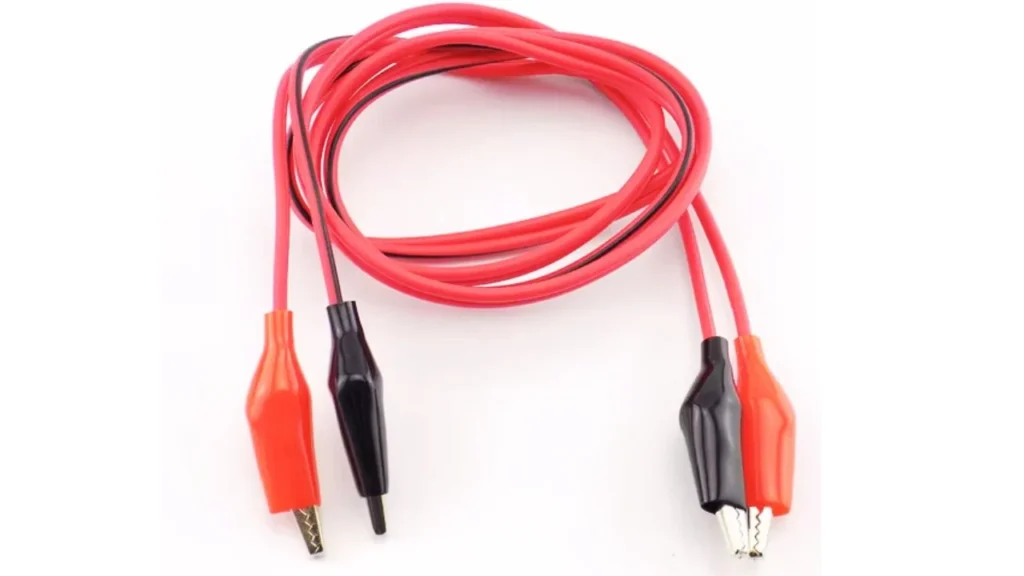
These help hold probes in place, making testing easier.
Gloves & Anti-Static Mat
I learned the hard way that static can ruin sensitive components. Always test on an insulated surface.
3 Pre-Check Steps Before Testing
Don’t rush into testing! Follow these three key steps to avoid mistakes:
1. Power Off & Discharge Safely
Even when unplugged, LED boards can still hold a charge, which can be dangerous. I learned this the hard way when I got a mild shock from a TV panel that had been off for several minutes. To stay safe, always unplug the device and wait at least 10 minutes for the capacitors to fully discharge. Even when unplugged, LED boards can still hold a charge, which can be dangerous.
I learned this the hard way when I got a mild shock from a TV panel that had been off for several minutes. To stay safe, always unplug the device and wait at least 10 minutes for the capacitors to fully discharge. For extra assurance, I always check the capacitor with my multimeter after the waiting period to make sure no charge remains before I handle the board.
If you want to speed up the process, using a 1kΩ, 5W resistor can help drain any remaining voltage safely. As I’ve researched, LED boards and lights still contain electricity even after being turned off, so make sure you take proper precautions before handling them.
2. Look for Physical Damage
A simple inspection can reveal problems before testing. I always check for burn marks, as a fried LED or component may need replacing. Cracked solder joints are another issue since a loose connection can make an LED appear dead. Corrosion or water damage, often seen as rust or green spots, can also indicate moisture exposure and potential circuit failure.
3. Identify LED Wiring Type
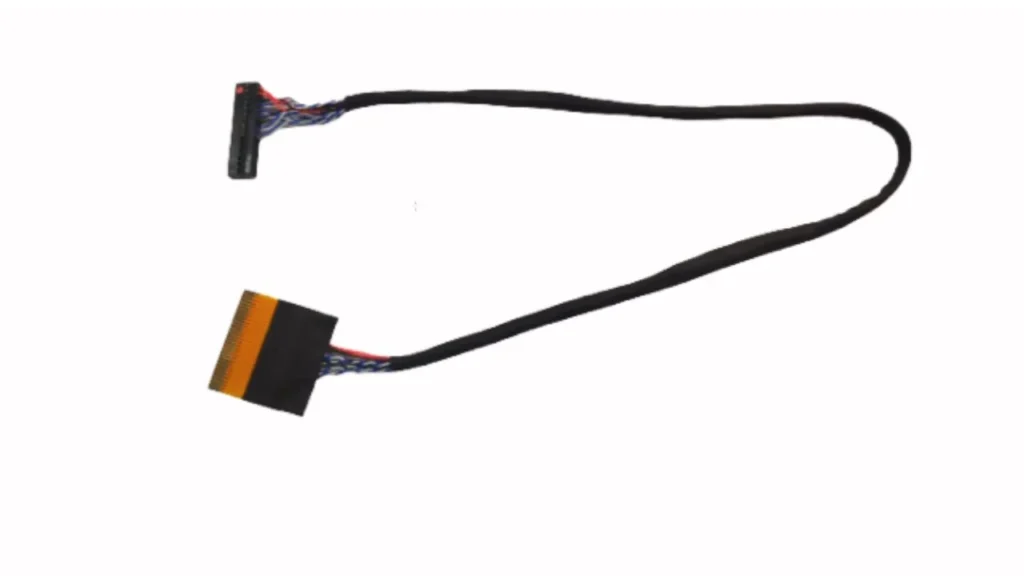
LED strips come in series, parallel, or hybrid configurations, and I’ve learned that knowing the type makes troubleshooting much easier. In a series setup, I’ve seen how one failed LED can shut down the entire strip. With parallel wiring, some LEDs stay on even if others fail, which can make diagnosing the issue trickier. I’ve also worked with hybrid setups, a mix of both, which are common in modern TVs and often require extra attention to pinpoint the exact problem.
I once tested a Samsung LED panel with a series-parallel setup. Half the strip still worked despite one faulty LED. Without knowing the wiring type, I would have misdiagnosed the issue.
How to Test a LED Backlight Board with a Multimeter?
I’ve tested countless LED backlight boards over the years, and a multimeter is the best tool for quick, accurate diagnosis. Whether you’re troubleshooting a dim screen, flickering display, or a completely dead backlight, this guide will walk you through step-by-step testing using a multimeter.
Step-by-Step Testing Guide
1. Set Up Your Multimeter
Before testing, you need to set up your multimeter correctly.

Turn off the power to the LED backlight board. Set your multimeter to diode mode or DC voltage mode if diode mode isn’t available. Test the probes by touching them together. You should see 0.000 or a slight reading.
A pro tip: If your multimeter is auto-ranging, you don’t need to adjust voltage settings manually.
2. Check LED Continuity (Diode Mode Test)
A continuity test helps check if individual LEDs are working.
Place the red probe on the positive terminal and the black probe on the negative terminal of the LED. If the LED lights up faintly, it’s functional. If it doesn’t light up, reverse the probes and test again. If there’s still no light, the LED may be faulty, or the circuit is broken.
I tested an LG 55-inch LED TV backlight strip last week. Out of 30 LEDs, 5 failed the continuity test. They didn’t light up even after flipping the probes, confirming they were dead.
3. Measure LED Voltage (DC Voltage Mode)
If the LEDs don’t light up during the continuity test, a voltage test can confirm if power is reaching them.

Switch your multimeter to DC voltage mode (20V range). Touch the red probe to the positive side of the LED and the black probe to the negative side. A working LED should show a voltage reading between 2.5V and 3.5V. If the reading is 0V or above 4V, the LED or circuit may be damaged.
Most white LED backlights operate at 3.2V, but some brands like Sony use 3.4V.
4. Test the Entire LED Backlight Board
If multiple LEDs are failing, test the entire backlight board to check for power issues.

Locate the V+ and V- pins on the board, usually marked. Set your multimeter to DC voltage mode (200V range). Touch the red probe to V+ and black probe to V-. A functional backlight board should read between 30V and 100V, depending on the TV model.
I tested a Samsung 50-inch TV backlight board using my Fluke 117 multimeter, and it was showing 0V across the pins. This told me the power supply wasn’t delivering voltage to the LEDs, confirming a board failure. If you’re looking for a more budget-friendly option, I can suggest a few multimeters that are still great for this kind of work.
Comparison Table: Multimeter Tests for LED Backlight Boards
Troubleshooting & Best Practices
If my multimeter readings don’t add up, I know troubleshooting is key. Over time, I’ve learned where to look to save time and frustration.
Troubleshooting Common Issues
- OL in continuity mode? That’s an open circuit. 0Ω? That’s short. I check for burnt parts.
- When troubleshooting circuits, loose connectors and damaged traces can often be the cause of failures. I always make sure to inspect them closely. Based on my extensive research on troubleshooting circuits, I’ve found that understanding circuit board issues can really help.
- Flickering or dead LEDs? Faulty solder joints might be the culprit. A quick reheat and fresh solder usually fix this.
- Using diode mode, I test LEDs—if one doesn’t light up, it’s likely bad. Too many failures? I replaced the strip.
- Misaligned connections cause flickering. I always reseat connectors and ribbon cables.
- If more than 25% of LEDs are bad, I replace the strip. A faulty driver circuit means swapping the board.
Multimeter Readings & Troubleshooting Guide
Final Wrap-Up: How to Test a LED Backlight Board with a Multimeter?
Testing an LED backlight board with a multimeter has saved me time and money on repairs. By checking for shorts, open circuits, and faulty LEDs, I quickly figure out the issue. If it’s just a bad solder joint, I fix it—but if too many LEDs have failed, replacing the strip or board is the smarter move. I always double-check my readings and follow safety measures to avoid mistakes. With the right approach, I troubleshoot confidently and get my screen shining bright again.
FAQs About How to Test a LED Backlight Board with a Multimeter?
1. How do I test an LED backlight board with a multimeter?
I set my multimeter to diode mode to check individual LEDs. If an LED doesn’t light up, it’s likely faulty. For circuit issues, I use continuity mode to find open circuits or shorts.
2. What does it mean if my multimeter reads OL when testing the backlight board?
A reading of OL in continuity mode means there’s an open circuit. I check for broken traces, loose connectors, or damaged components.
3. Can I test an LED backlight board without removing it from the screen?
Yes, but it’s tricky. I test voltage at the connectors and look for flickering or dim sections. For a full diagnosis, I prefer testing with the board removed.
4. How do I know if my backlight board needs replacing?
If multiple LEDs fail, soldering doesn’t fix the issue, or the driver circuit is faulty, I replace the entire board instead of wasting time on minor repairs.